Allocate
The allocate tasks allow you to allocate licenses to software usage

Allocate Manually
The Allocate Manually task allows you to manually allocate licenses to software usage.
- Select the product to allocate licenses to.
- Click Allocate Manually in the Tasks List. The Allocations tab is displayed. This displays a breakdown of a product's usage and the licenses allocated to it.
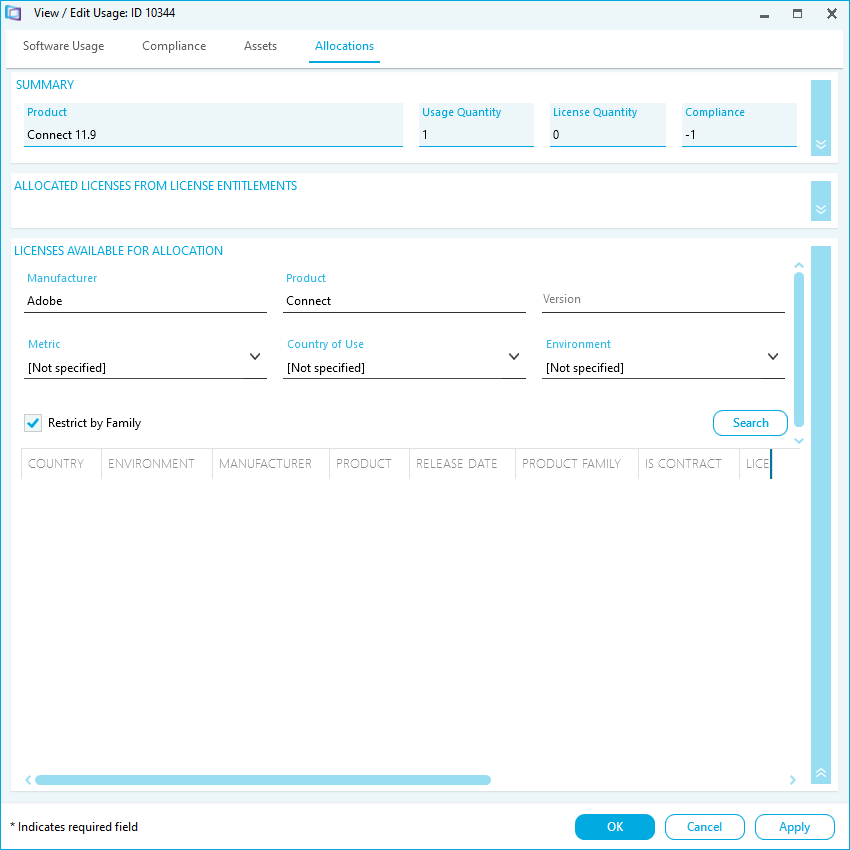
- Use the search pane to search for licenses.
- Type the quantity of available licenses you want to allocate to the usage.
- Click Allocate.
The license is allocated to usage and displays in the Allocated Licenses from License Entitlement field.- Click OK to save the change to the usage details and return to the Compliance workspace.
- Click Apply to save the change to the usage details and remain in the View Usage Details task.
Allocate Automatically
The Allocate Automatically task allows you to automatically allocate licenses to software usage.
- Select the product to allocate licenses to.
- Click Allocate Automatically in the Tasks List. The Allocate Entitlement Automatically window is displayed.
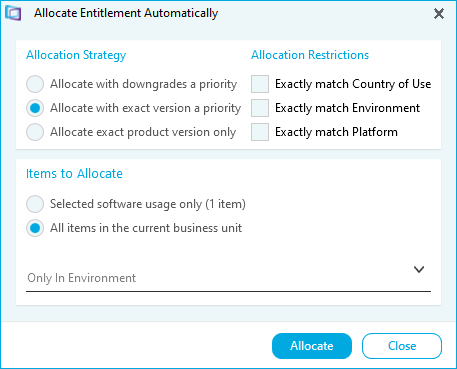
- Set a Strategy for allocating entitlement.
- Set any Allocation Restrictions for allocating entitlement.
- You can match Software Usage to Licenses with the same Country of Use.
- You can match Software Usage to Licenses with the same Environment.
- You can match Software Usage to Licenses with the same Platform.
- Set Items to allocate.
- Select whether to allocate the selected or all inventory items.
- You can set items to allocate for a specific Environment only.
- Click Allocate. A confirmation message is displayed.
- Click Close. License entitlement has now been allocated to usage.